Server-side Google Tag Manager (sGTM): The ultimate guide
sGTM specialist Lucas Rollin provides a comprehensive guide to understanding and configuring Server-side Google Tag Manager (sGTM).


This article was written by Lucas Rollin, sGTM specialist at Data Marketing School. Would you also like to share your expertise on our blog? Contact us at blog(at)didomi.io
In a world where web performance, compliance with regulations such as the GDPR, and the accuracy of marketing data have become critical, the server-side version of Google Tag Manager (GTM) (also known as sGTM) offers a tailored and flexible solution.
This article provides a step-by-step guide to understanding, configuring, and getting the most out of sGTM.
What is Server-side Google Tag Manager (sGTM)?
GTM Server-Side, or sGTM, is a tag management tool developed by Google that allows you to connect all your marketing tools (analytics, advertising, attribution), such as GA4, Google Ads, Meta Ads, and more.
Unlike the client-side version of GTM, where the browser sends requests directly to marketing tools, sGTM introduces an intermediary server. Your website’s data is first sent to this server, which processes it and then forwards it to your tools. This shift to server-side processing enables the benefits detailed below.
Here’s what the sGTM interface looks like:
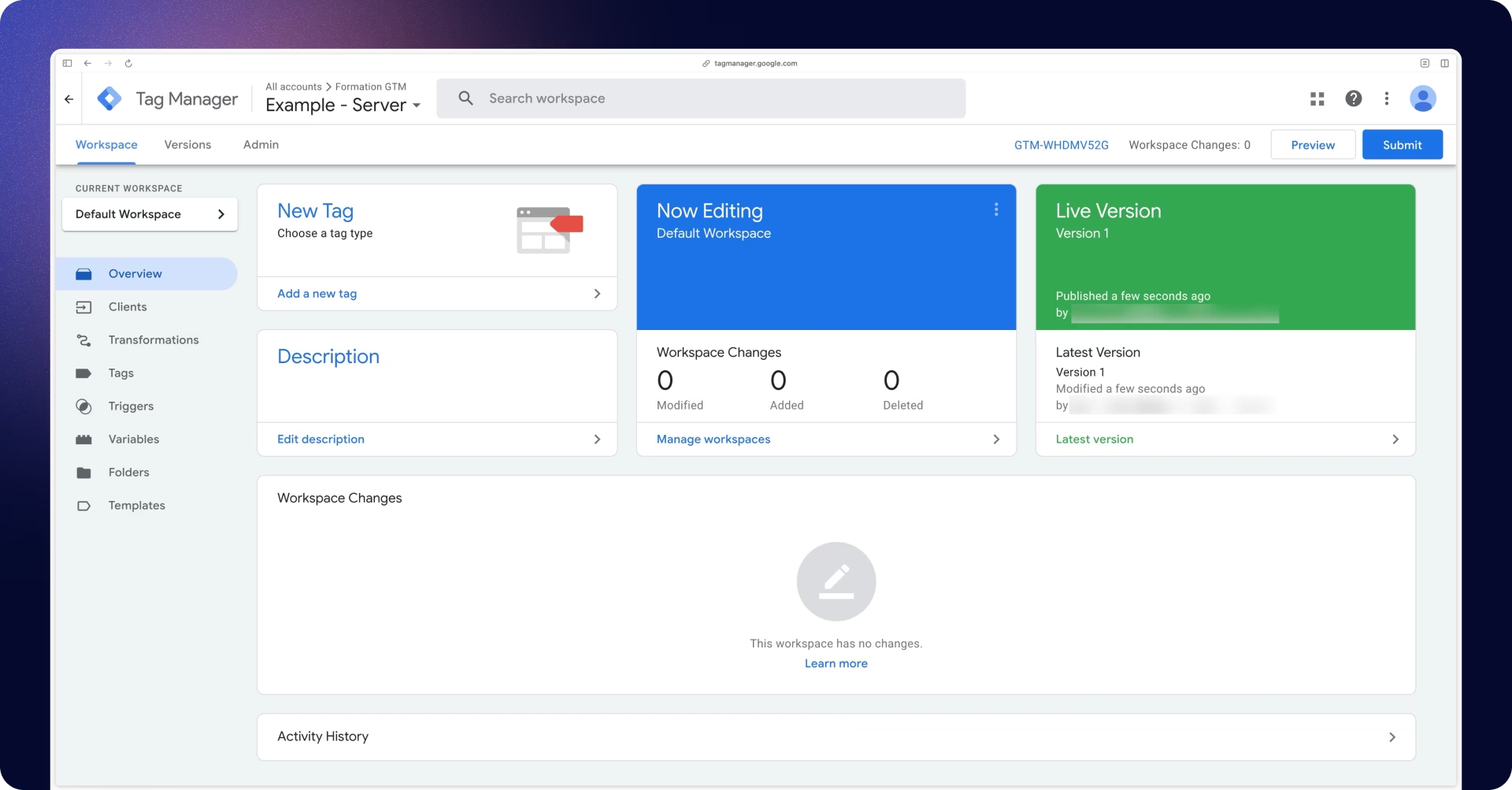
Note: If you're used to using GTM Web but aren't yet familiar with Server-side Google Tag Manager, you'll notice here that two new menus are available on the server side: Clients and Transformations.
To connect a platform, you must configure its associated tag. Here is an example of the GA4 tag in sGTM:
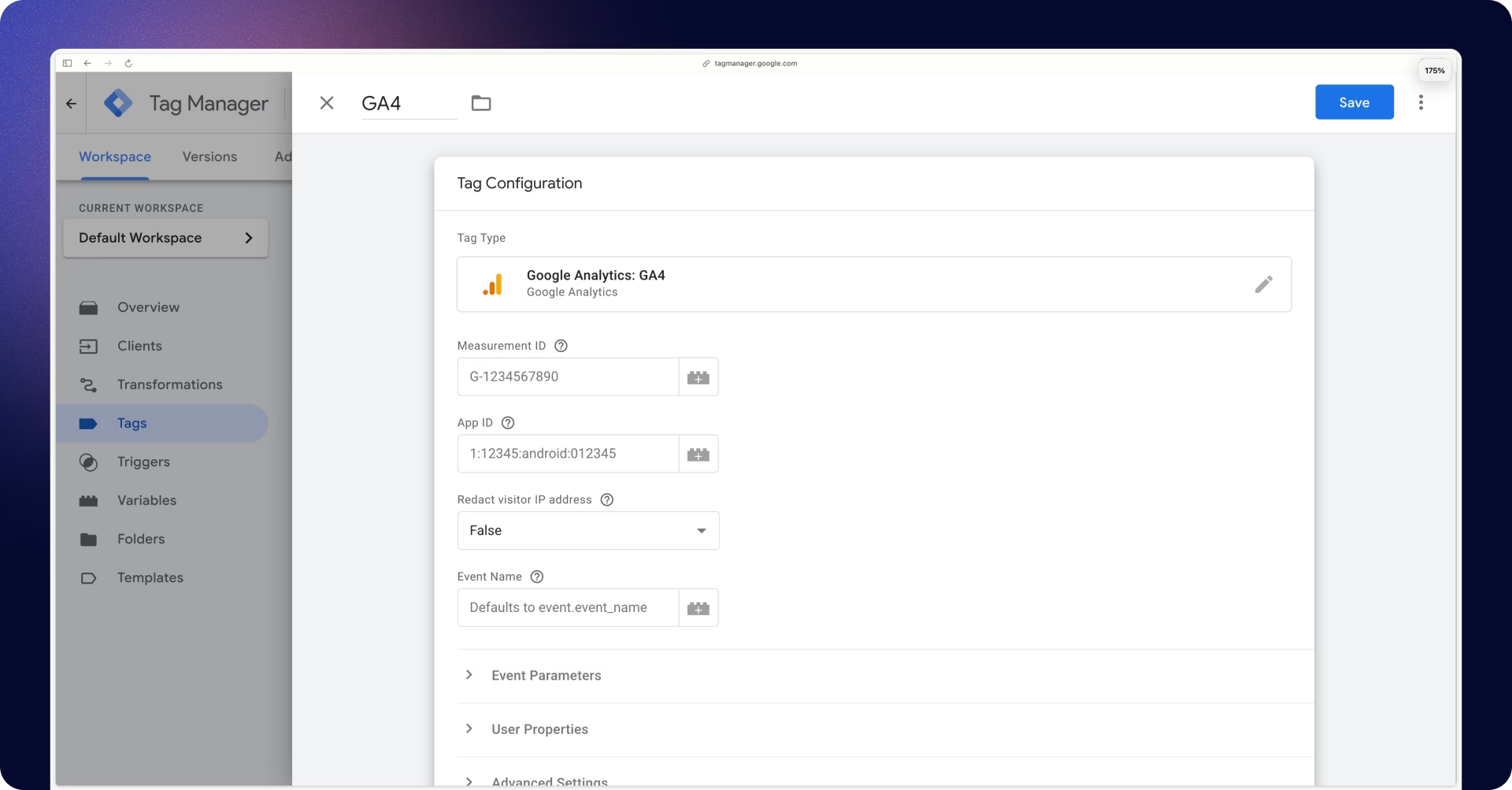
What makes Google Tag Manager so powerful is its large community, which constantly develops new tags that let you connect platforms without writing a single line of code.
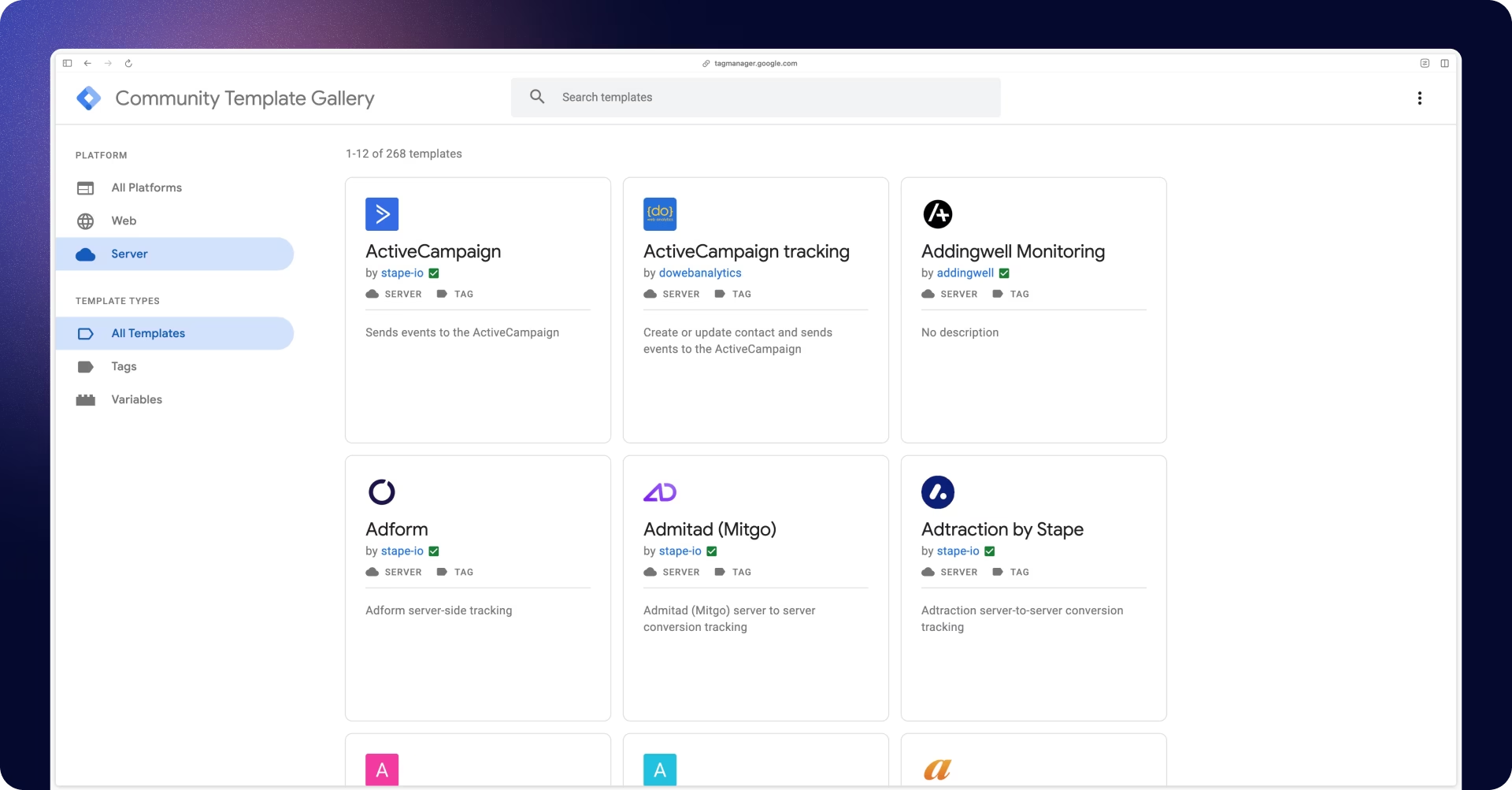
For example, let’s say you want to connect Meta CAPI, but no such tag is available. You’d expect to have to write code to develop it yourself, but if someone in the community has already done it for you, you can connect to that platform quickly and effortlessly.
For your information, the Google Tag Manager template gallery currently has 216 server tags you can use freely.
Also, if you need extra help, a tool as popular and well-known as Google Tag Manager makes it easier to find the right person, whether you're hiring or outsourcing.
Benefits of server-side tracking
Server-side tracking offers three main advantages that can be difficult to grasp if you're just getting started with this technology. So we'll go into as much detail as possible:
1) Handling Ad Blockers
An ad blocker typically takes the form of a browser extension (such as uBlock for Chrome) or may be built directly into the browser (such as Brave).
Once installed, the tool blocks requests (events or conversions) that leave the browser and are sent to your marketing platforms.
The percentage of traffic using ad blockers varies by site. It also fluctuates over time as your audience changes. It is therefore difficult to determine precisely what percentage of traffic on your website is blocked by an ad blocker. On average, ad blockers block 5 to 15% of requests, which represents a significant amount of lost data.
To recover this lost data, we’ll modify the requests the browser sends to your marketing platforms so they slip under the radar of ad blockers. This is only possible with server-side tracking.
Important note: Collecting this data does not mean tracking everyone, and server-side tracking must never bypass users’ consent.
An ad blocker is an ambiguous signal. Unlike a consent banner, it does not specify why the visitor installed it (to stop seeing ads, speed up browsing, or specifically to avoid being tracked), and it therefore cannot be treated as a refusal of tracking. Only the user choice expressed through your CMP is binding.
Learn more about best practices regarding ad blockers in our guide.
2) Optimizing web performance
The more elements you load onto your website, the longer it will take to load. This can lead to a high bounce rate among new visitors (who will leave before the page finishes loading) and a drop in rankings on Google, which closely monitors Core Web Vitals.
You should also keep in mind that not all of your traffic necessarily comes from a 10 Gb/s fiber network. You’ll also have visitors using 3G and 4G networks.
With these factors in mind, it becomes crucial to load only the bare minimum on the page.
The problem is that to connect your marketing platforms and track your performance, you’ll need to add a snippet of code for each platform to your site (GTM, GA4, Meta, Google Ads, etc.), which significantly slows down your site.
Server-side tracking allows you to limit the amount of code added to your site. You’ll only need to integrate the GTM and GA4 codes while connecting all your platforms server-side.
3) Extending the Lifespan of Cookies
Cookies, though sometimes misunderstood, are a memory area in your visitors’ browsers that lets you identify a single visitor across multiple visits.
For marketers, cookies that remain in visitors’ browsers for a long time are very useful for:
- Identifying conversion paths
- Attributing a conversion to an acquisition channel
Browsers such as Safari and Firefox have implemented cookie restrictions that directly affect measurement because they block cookies set via JavaScript or significantly reduce their lifespan.
Server-side tracking allows for the dropping of cookies that are less subject to browser restrictions, as they are considered trustworthy because they are placed by a server rather than by a script within the browser.
Best Practices for Getting Started with Server-side Google Tag Manager (sGTM)
Server-side tagging is best learned through practice. Here are the best practices I recommend for beginners, organized by the phases of an initial setup: preparation, configuration, testing, and optimization.
Before you begin
Use a service like Addingwell to simplify deploying a tagging server. And most importantly, perform your first server-side configuration on a test site, not directly on a client’s site. That way, you can make mistakes and understand how everything works without any consequences.
Server-side Google Tag Manager (sGTM) Configuration
Here are a few tips that will save you a lot of time once the server is up and running:
- Keep the complexity within GTM Web. By the time your data reaches the server, it should already be “clean.”
- Choose your tags carefully. In our experience, some official sGTM tags (developed by the platform) aren’t always suitable or easy to use. Opt for tags from Addingwell or other server-side tracking experts.
- Adopt a naming convention for your variables, tags, and triggers in sGTM. For example:
- Event data variable: ED - page_location
- Trigger that checks that the client name is GA4 and the event name is page_view: CN - GA4 + EN - page_view
- Isolate your migration in a dedicated workspace. When multiple people work on the same GTM Web container, create a separate workspace (named, for example, “Server-Side Migration”), make all your configuration there, then publish a version with that name. This way, you won’t impact others’ deployments on the existing client-side setup.
- Manage consent from the start. A server-side implementation does not exclude you from collecting valid user consent (see the section dedicated to this topic later in the article).
Testing and debugging
Two habits will save you hours of debugging:
- First, check the client side. In 90% of cases, a server-side setup problem is caused by client-side configuration.
- Test the entire data flow, not just individual components. The GTM preview is useful for unit testing, but some issues only become apparent when the entire data flow from your traffic is involved. Monitor all events passing through your tagging server for comprehensive testing, using a tool like Addingwell’s Events Monitoring.
To go further
Once your configuration is in place and validated, there are several optimizations you can make to get more out of your server-side setup:
- Send user data to improve measurement accuracy.
- In e-commerce, bid on margin rather than revenue.
- Bypass Safari ITP using cookie restoration or a reverse proxy.
- Manage ad blockers by replacing the GTM script on your site (may require developer assistance).
- Upload your offline data to your platforms if you have retail locations.
Learn how to get the most out of your server-side setup
The Meta Conversion API (CAPI) example
Here’s a concrete example. Your marketing director has asked you to use Meta’s conversion API (Meta CAPI) to send more accurate data, but it’s a bit unclear to you right now. We’ll break it all down here.
Meta does recommend connecting the conversion API (CAPI) in addition to the pixel. Their goal is to identify as precisely as possible WHO is currently on your site.
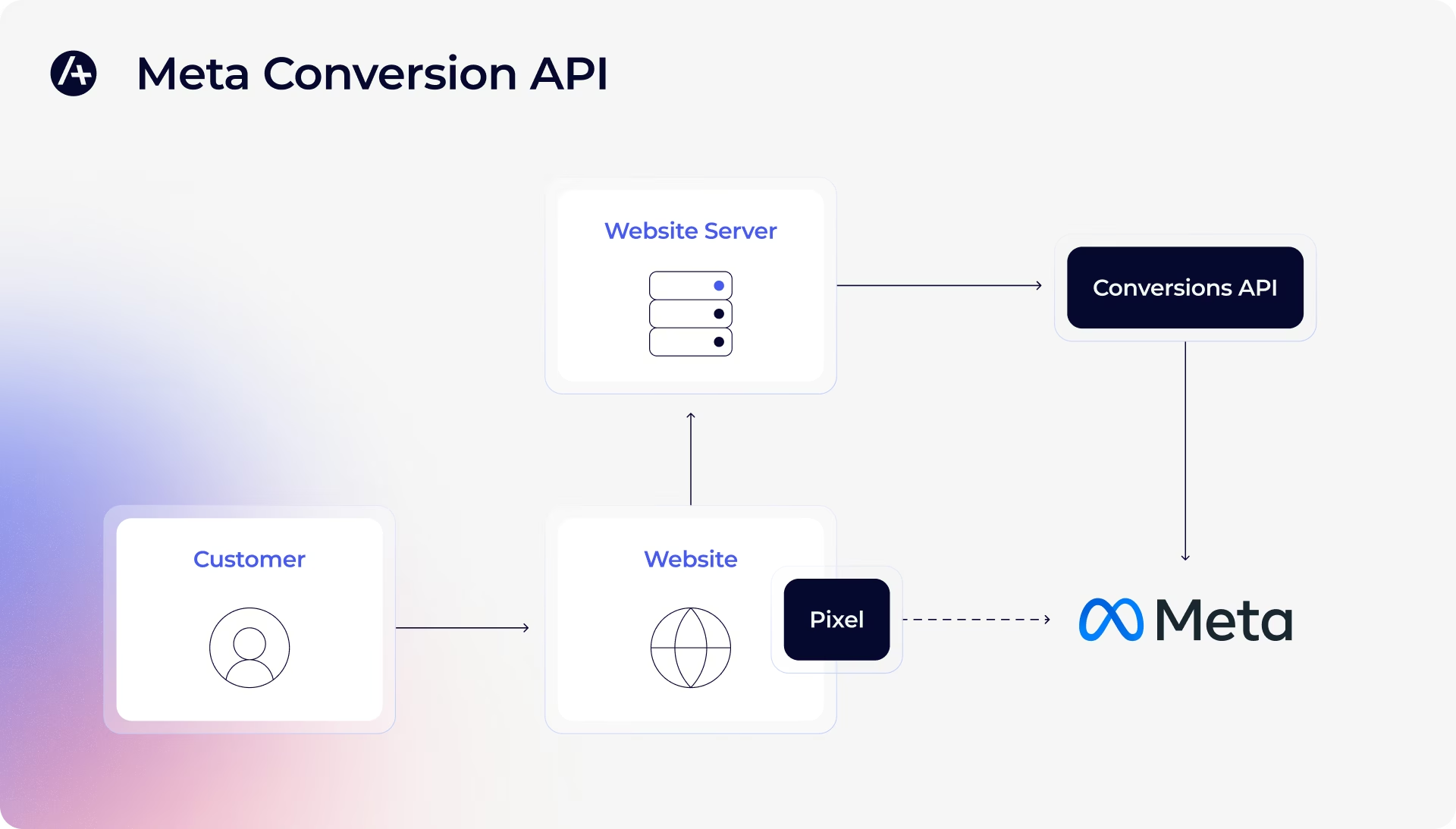
To do this, Meta uses three data points (listed in order of importance):
- Third-party cookies (without going into detail, these are sent via the pixel)
- The ad click identifier called fbclid, which is stored in the browser via the _fbc cookie
- User data (you can send your visitors’ email addresses and phone numbers when this information is available)
Thanks to the conversion API, user data and the click ID will still be sent to Meta even if the pixel is blocked in the browser (whether by a built-in ad blocker or one added via an extension). If there is no ad blocker, all three data points will be sent (third-party cookies, fbclid, and user data).
This makes it the optimal configuration to help Meta recognize who is currently on your site and thus optimize your ads as effectively as possible.
To connect Meta CAPI with Google Tag Manager Server, we recommend using the Meta Conversion API tag by Addingwell. This tag will significantly simplify setting up and managing deduplication for pixel and Conversion API events.
You can find all the setup documentation here.
Configure consent between GTM Web and GTM Server
Server-side tracking does not allow you to bypass consent. Your tagging server must also know what each visitor has agreed to so that it triggers only the authorized tags.
The principle is simple: the visitor’s choice, recorded by your CMP in the browser, is added to your data stream as a parameter (for example consent_status). Each event sent to the server thus carries the visitor’s most recent consent, and this parameter serves as a trigger condition for your server-side tags.

In the example above, the visitor accepted Google Analytics and Facebook but declined Pinterest. On the server side, the GA4 and Meta CAPI tags are triggered, while the Pinterest CAPI tag is blocked.
Good news for Google tags (GA4, Google Ads): if Consent Mode is configured with your CMP, it automatically sends signals to your server in the requests. The consent_status parameter is still required for all other platforms (Meta CAPI, Pinterest CAPI, TikTok, etc.) that do not support Consent Mode.
Key takeaways on sGTM and Server-Side Tagging
Server-side tracking isn’t a new way to track your visitors, but a new way to collect data.
By moving the processing from the browser to a server, you get more reliable metrics, lighten the load on your site, and extend the lifespan of your cookies, all without affecting your consent requirements, which remain exactly the same.
Like anything else, you learn by doing. Don’t jump straight into a live site; instead, set up a tagging server on a test site, keep your data flow clean on the GTM Web side, and validate your entire tracking setup with a monitoring tool before scaling up. Once you have this solid foundation, more advanced optimizations (user data, bypassing Safari ITP, offline data) will greatly increase your setup's value.
The hardest part is getting started. That’s exactly the kind of support I offer as a freelancer in partnership with Addingwell. Based on your data needs, I’ll develop a measurement plan, manage the project, connect your platforms, and monitor the data to ensure everything tracks correctly. To get your server-side project started, feel free to reach out.
Frequently Asked Questions (FAQ)
Does server-side tracking allow you to bypass consent?
No. Server-side tracking changes your data-collection architecture, not your legal obligations. The GDPR and the ePrivacy Directive apply in the same way, whether your data passes through the browser or your server.
In practical terms, you must transmit your visitors’ consent choices (collected via your CMP) through your data stream to your tagging server, and use them as a trigger condition for your tags. A visitor who has opted out of tracking must not be tracked. Use server-side tracking to more reliably measure visitors who have consented, not to track those who have opted out.
What will my return on investment (ROI) be if I switch to server-side tracking?
It depends on your traffic and how much you rely on advertising platforms. In practice, we generally see a 5 to 15% increase in requests sent to platforms (Meta, Google Ads) thanks to bypassing ad blockers.
More measured conversions send a stronger signal to bidding algorithms, leading to better-optimized campaigns and lower customer acquisition costs. On the other hand, factor in hosting costs (starting at €90/month, depending on your event volume) and implementation costs.
What does sGTM stand for?
sGTM stands for server-side Google Tag Manager. It is Google’s server-side tag management solution, which sends website data to an intermediary server before forwarding it to analytics and advertising platforms such as GA4, Google Ads, and Meta.
Is server-side GTM free?
Google Tag Manager itself is free, but running server-side GTM is not completely free. sGTM requires a server or cloud hosting environment, which creates ongoing hosting costs that vary depending on traffic and event volume.
Does sGTM bypass ad blockers?
sGTM can help recover tracking data that browser-based ad blockers would otherwise block. Because data can be sent through a first-party server endpoint rather than directly to advertising platforms, fewer requests may be blocked, but sGTM must never be used to bypass a user’s consent choice.
How long does sGTM setup take?
There is no fixed time for an sGTM setup. A basic implementation may take a few hours, while a production migration involving multiple platforms, consent management, testing, and debugging can take several days or longer depending on the complexity of the tracking setup.
Can I use sGTM without Google Tag Manager on the browser side?
Not usually for a standard website implementation. sGTM still needs a browser-side source, such as a GTM Web container or Google tag, to collect events and send them to the server container; however, you can then move many third-party tags off the browser.
Is server-side tracking legal?
Yes, server-side tracking is legal when implemented in accordance with applicable privacy laws and user consent requirements. It does not bypass GDPR, ePrivacy, or consent obligations, and users who refuse tracking must not be tracked simply because data is processed server-side.
Does Google Tag Manager slow down your site?
Google Tag Manager can slow down a website if it loads many or poorly optimized client-side tags. Moving appropriate tags to server-side GTM can reduce third-party code and browser requests, improving page speed and overall web performance.
The author